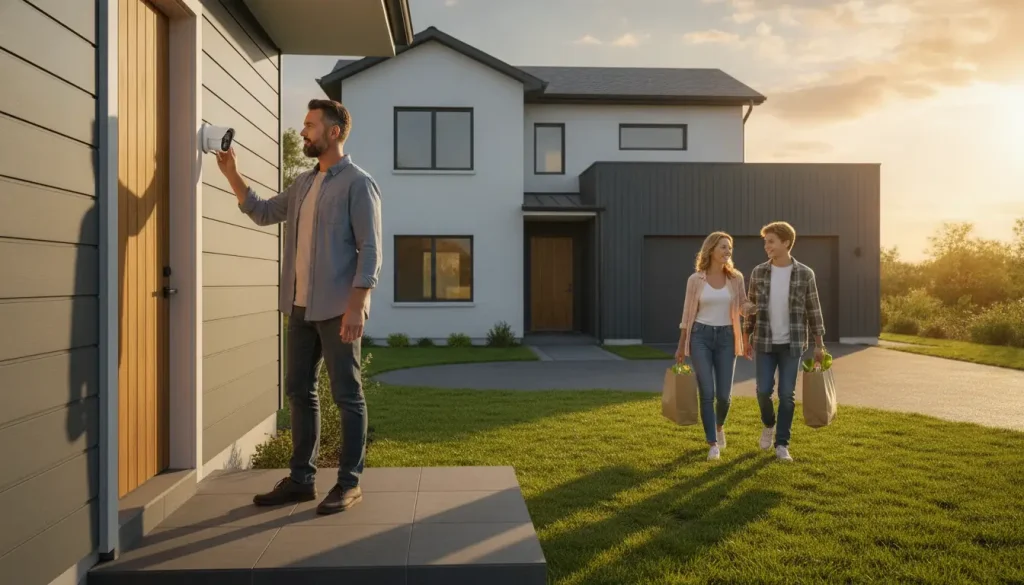
Home camera access rarely stays with one person for a long time. Someone wants to check whether a package landed on the porch, a parent wants a quick look at the driveway after school, or a roommate needs to see who is at the shared front entry.
Those are normal reasons to share security camera access. The trouble starts when every request gets solved with the same owner login. That feels quick on the day you send it, but it leaves no clean way to tell who can still see the cameras later.
A better setup gives each person their own account, limits what they can do, and removes access when the reason for sharing is over. Simple enough. Still worth doing carefully.

What Security Camera Family Sharing Should Mean
Security camera family sharing should not turn one password into a household key. In a healthier setup, each viewer has a separate account, a clear reason for access, and only the cameras that match that reason.
Use this table as a planning check before you add user to security camera access. It helps separate everyday convenience from control of the whole system.
| Sharing situation | Better access level | What the person usually needs | What to avoid |
| Spouse or trusted co-owner | Admin or co-admin if needed | Manage devices, alerts, storage, and household access | Admin rights for someone who only checks live view |
| Parent, adult child, or close family viewer | Viewer | See selected cameras and relevant events | Sharing the main account password |
| Roommate | Limited viewer | Shared exterior entrance, garage, or driveway if agreed | Private indoor areas or unrelated cameras |
| Neighbor or house sitter | Temporary viewer | Check front door, delivery area, or driveway during travel | Access that stays active after the trip |
| Home showing helper or contractor coordination | Short-term guest access | Verify arrival or entry for a specific window | Permanent access or settings control |
The useful role is usually narrower than people expect. A person checking for a delivery does not need recording schedules, privacy zones, or the ability to invite someone else.
Admin vs Viewer: Match Access to the Job
Most camera apps have some form of role sharing, though the wording changes by brand, device model, and app version. The menu label matters less than the result: after the invite is accepted, can that person only look, or can they change how the system behaves?
| Role type | Typical permissions | Best for |
| Administrator | May manage devices, settings, alerts, storage, and other users | A trusted co-owner who helps run the whole security system |
| Viewer | Can usually view selected cameras or events without changing core settings | Family members who need awareness, not control |
| Temporary or guest viewer | Time-limited or purpose-limited access when available | Travel, house sitting, showings, or short-term coordination |
Keep administrator access scarce. Admins may be able to change motion zones, recording rules, privacy settings, notification routing, and the shared user list. In most homes, that is too much power for someone who only needs to know whether the gate opened.
Shared credentials create a different kind of mess. If several people use the owner account, a lost phone or a former roommate becomes harder to handle because there is no single viewer account to remove.
How to Add Users to Security Camera Access Safely
Camera apps do not all use the same menu path, so avoid relying on one universal set of instructions. Treat the steps below as a safe workflow, then check the current help page for your device before sending the invite.
1. Choose the Camera or Home First
Start with the view, not the person. Some apps share by home, location, hub, or device group, while others let you share one camera at a time. If the person only needs the front door, there is no reason to expose the garage, backyard, nursery, or every camera on the same hub.
Names help more than people realize. In a multiple camera home, labels such as “Front Door,” “Driveway,” and “Back Gate” make later permission reviews much easier than default device names.
2. Invite the Person Through the App
Use the app’s family, home, device sharing, or account sharing area to send the invite. Ask the recipient to sign in with their own account instead of passing around the owner password.
When the app asks for a permission level, start with viewing access unless the person truly manages the system. For one-off help, use a guest or limited role if the app offers one.
3. Confirm What the Viewer Can See
After the invite is accepted, check the viewer’s side. Look for the cameras that appear, whether live view opens, whether recorded events show up, and whether settings controls are hidden or limited.
This is the small step people skip. A share that looked like one camera in the owner account may behave like a home, hub, or location share once the other person accepts it.
4. Separate Alert Responsibility
Access and alerts are not the same thing. If every person gets every motion clip, people start muting the app, and the cameras become easier to ignore.
Route notifications around real responsibility. A parent may want entry alerts during school hours. A roommate may only need shared doorway notices. A house sitter may need travel week alerts and nothing after you are back home.
For the owner account itself, use extra account protection where it is available. The FTC explains how multi-factor authentication works and how to enable it, and that kind of check is especially useful when a camera account controls several devices.
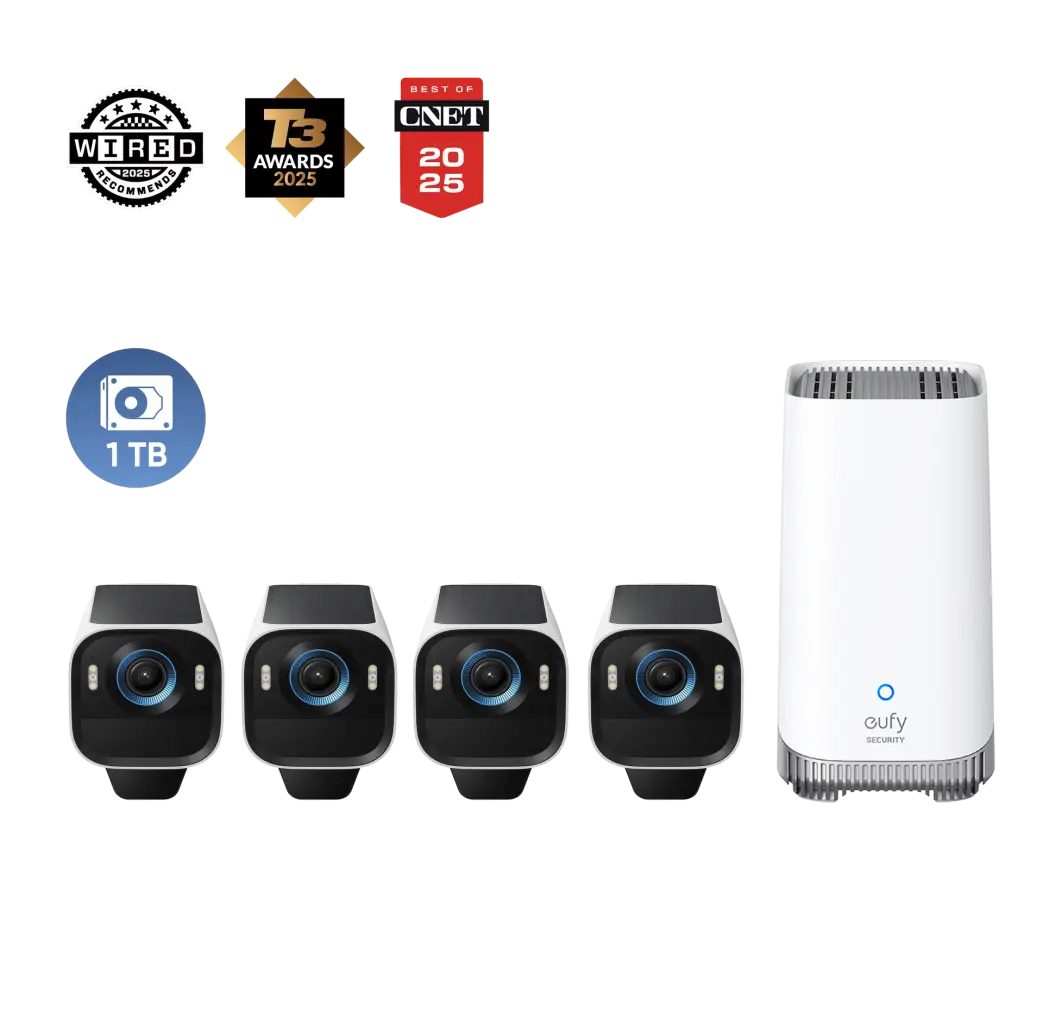
For multi-device home security setups, the eufyCam S3 Pro Kit with HomeBase 3 simplifies role-based sharing and centralized permission management for entire households.
Temporary Guest Access Home Camera Scenarios
Temporary access works best when the job has an end date. It should feel more like handing someone a spare key for a weekend than adding a new permanent member to the household system.
| Scenario | Suggested access | End point to set before inviting |
| Family vacation | Viewer for front door, driveway, or delivery area | The day you return home |
| House sitter | Viewer for exterior cameras and agreed entry points | End of the sitting period |
| Neighbor checking packages | Viewer for front door only | After the delivery or trip |
| Home showing coordination | Short-term view of exterior entry if needed | After the showing window |
| Contractor arrival check | Limited view of the relevant entrance | After the appointment |
Before a trip, write down who can see what and when that access should end. A calendar reminder is enough for most households. Memory is the weak link.
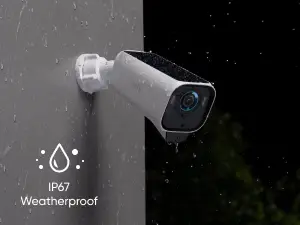
Those who only need exterior monitoring can explore the eufy outdoor security camera lineup for reliable, easy-to-share home surveillance options.
Roommates, Renters, and Short-Term Guests
Shared homes need firmer boundaries than single family setups. A roommate may reasonably need access to a shared exterior entrance, but that does not make every camera fair game. Tenants and short-term guests may also need disclosure, especially when cameras sit near entrances, shared spaces, or indoor areas.
Do not treat shared access as a workaround for consent or notice. Rules vary by location and property type, and indoor monitoring can raise serious privacy concerns. This article is general information, not legal advice.If you have questions about local surveillance laws, consult a local attorney.
The practical rule is small and plain: share the narrowest useful view, explain why it is shared, and remove it when the living arrangement or access need changes.
Revocation Checklist When Plans Change
Access should be reviewed while the context is still fresh. That means after a trip, when a roommate moves out, when a contractor finishes, when a phone goes missing, or when a family situation changes.
| What to check | Why it matters |
| Shared users list | Removes the person’s account from the app-level access list |
| Each home, hub, or device group | Some access may be attached to a location rather than one camera |
| Individual camera permissions | A viewer may still have access to one camera even after another is removed |
| Notification routing | Old viewers should not keep receiving motion or door alerts |
| Admin list | Too many admins can invite people or change settings later |
| Signed-in devices | A tablet, browser, or spare phone may still be using a shared owner account |
| Owner password and MFA | Change the password if it was ever shared, and enable MFA if available |
After removing someone, check from the owner account that the person no longer appears in shared access. If the situation is sensitive, review every camera and every administrator, not just the device that caused the conversation.
Best Eufy Security Camera Setup for Family Sharing
Sharing rules are only half of the setup. The system itself needs to be easy to understand later, especially in a home with several outdoor angles and more than one person checking alerts.
Before sending invites, set clear camera names such as “Front Door,” “Driveway,” and “Back Gate.” Obvious names make day-to-day use easier and also make permission reviews faster months later.
Households comparing different surveillance systems can browse the full eufy security camera collection to design balanced home coverage for entryways, yards, and shared spaces.
Before publishing app steps or relying on an older tutorial, check the latest eufy help resources for the current sharing path and supported roles, since app menus and permissions can change over time.
Conclusion
The safest everyday habit is straightforward: do not share the owner’s password. Invite people through the app, keep administrator access for the people who manage the system, and use viewer access for everyone else.
Good sharing should make the home easier to watch, not harder to control. When each invite has a reason and each person has their own account, family sharing stops feeling like a shared master key.