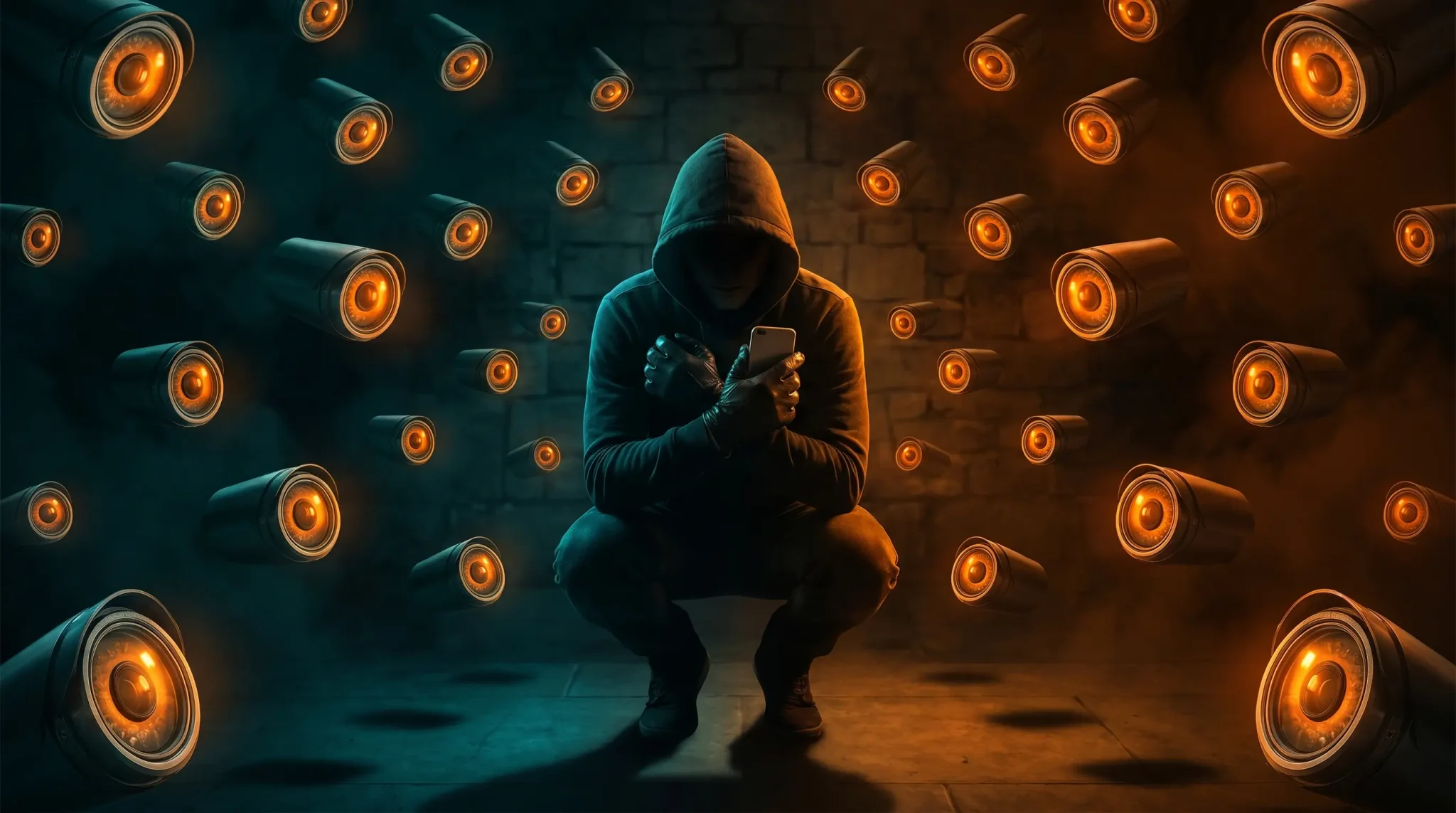


We have all experienced that deeply unsettling moment. You are sitting at a coffee shop talking to a friend about buying a new espresso machine. You have not searched for it on Google. You have not typed it into a text message. But an hour later, you open Instagram, and there it is: a highly targeted ad for a $500 espresso maker.
Your immediate thought is, “My phone is listening to me.” While the idea of a secret microphone conspiracy makes for a great story, the reality is actually much less dramatic—and somehow much worse. Your phone does not need to listen to your voice because its apps are constantly reading your digital body language. They know where you are, how fast you are moving, what you linger on, and who you are sitting next to. They trade this data in massive, invisible marketplaces.
But you do not have to be a victim of the data-broker economy. Apple has actually built incredibly powerful privacy shields directly into iOS; they just do not force you to use them. It is time to run a digital security audit. Here is how to configure your iPhone to lock down your personal data and become virtually invisible to tracking apps.
1. The App Tracking Transparency Shield
A few years ago, Apple dropped a nuclear bomb on the digital advertising industry with a feature called App Tracking Transparency (ATT). Every time you open a newly downloaded app, you get a pop-up asking if you want to allow the app to “track your activity across other companies’ apps and websites.”
When apps track you, they use a hidden ID number (your IDFA) to share your profile with third-party data brokers. This is how Facebook knows what you were looking at on Amazon.
You should always tap Ask App Not to Track. But if you want to be completely invisible and stop apps from even asking, you can shut the entire system down universally.
How to lock it down:
- Go to Settings > Privacy & Security.
- Tap on Tracking.
- Toggle off Allow Apps to Request to Track.
By turning this master switch off, every single app you install is automatically denied access to your tracking identifier. You are now officially off the cross-app grid.
2. The Location Trap: Precise vs. Approximate
Apps are incredibly greedy when it comes to location data. A navigation app like Google Maps obviously needs to know exactly where you are to give you turn-by-turn directions. But does a local weather app need to know which specific room of your house you are sitting in? Does a fast-food app need your exact GPS coordinates? Absolutely not.
Apple introduced a brilliant feature that allows you to feed apps a “fake,” generalized location. Instead of pinpointing your exact address, it gives the app a wide, multi-mile radius—enough to give you the local weather or find nearby restaurants, but not enough to track your daily commute.
How to lock it down:
- Go to Settings > Privacy & Security > Location Services.
- Scroll through your list of apps. Tap on an app that does not need your exact address (like Instagram, Weather, or Twitter).
- Toggle off Precise Location.
Pro-Tip: While you are in the Location Services menu, make sure you change most of your apps from “Always” to While Using the App. No social media platform should be tracking your movements while your phone is locked in your pocket.
3. Decoding the Spy Dots: Orange and Green
Have you ever noticed a tiny colored dot suddenly appear at the very top of your screen, right above your cellular signal bars? Those are not decorative; they are hardware-level warning lights wired directly to your iPhone’s sensors.
Apple introduced these to prevent malicious apps from secretly recording you in the background.
- The Orange Dot: This means an app is actively using your Microphone.
- The Green Dot: This means an app is actively using your Camera (and usually the microphone as well).
If you are using FaceTime or recording a voice note, seeing these dots is totally normal. But if you are just scrolling through a news article and the orange dot suddenly lights up, an app is listening to you.
How to catch the culprit: If you see a dot and you do not know why it is there, immediately swipe down from the top-right corner of your screen to open the Control Center. At the very top, iOS will explicitly tell you which app was just using your camera or microphone. If it is an app that has no business recording you, go straight to Settings, find the app, and revoke its camera/mic access immediately.
4. The Photo Library Lock-Down

When a social media or dating app asks for permission to access your photos so you can upload a profile picture, most people blindly tap “Allow Access to All Photos.”
Stop doing this. By granting full access, you are allowing that app’s developers to potentially scan your entire camera roll, extracting metadata (where and when photos were taken) and analyzing image contents.
How to lock it down:
- Go to Settings > Privacy & Security > Photos.
- Tap on apps like Facebook, WhatsApp, or Instagram.
- Change the access from “Full Access” to Limited Access.
When you choose Limited Access, iOS acts as a bouncer. The app cannot see your camera roll at all. Instead, iOS asks you to pick the specific photos you want to share, and it only hands those specific images over to the app.
5. The Privacy-Storage Connection
Digital hoarding is one of the most overlooked privacy risks. Think about the apps on your phone right now. Do you still have a random photo-editing app you downloaded in 2019? A flashlight app from before iOS had one built-in?
Old, unused apps are notorious for having outdated security protocols. Even worse, many of them are quietly sold to sketchy data-mining companies that use the app’s existing permissions to scrape your background data.
A good privacy audit goes hand-in-hand with a storage audit. You need to aggressively delete apps you no longer use. Take 15 minutes today to free up storage on iphone by offloading forgotten applications, deleting old profiles, and clearing out your digital junk. Not only will your phone run faster, but you will drastically reduce your “attack surface” for privacy leaks. If an app isn’t on your phone, it can’t track you.
The Bottom Line
True digital privacy isn’t about throwing your smartphone into the ocean and moving to the woods. It is about taking back control of your data. App developers design their software to collect as much information as possible because your data is their currency.
By taking just a few minutes to revoke precise location access, shut down cross-app tracking, limit photo library permissions, and keep a clean, uncluttered device, you instantly blindfold the data brokers. You bought your iPhone; it should work for you, not against you.