When the event is over, its narrative doesn’t have to be. In the fast-scroll age, one high-quality recording can be reworked into dozens of clips for each screen you occupy. That’s why marketers are stretching for tools such as Pippit, which allows you to easily crop video for massive on-site installations, mobile feeds, and everything in between. Rather than viewing editing as an afterthought, you integrate it into your event plan from day one and make each shot matter.
Why Should One Recording Feed Every Channel
Consider your master recording a master canvas. From it, you can make highlight reels, vertical teasers, square posts, or widescreen recaps. By thinking ahead for multi-platform cropping, not only do you save on re-shoots but you get content out the door quicker while your audience’s enthusiasm remains high.
Cropping Is Storytelling, Not Just Trimming
Everyone thinks of cropping as getting rid of the edges. In reality, it is about directing attention. Cropping tightly on the performer’s face can convey to mobile viewers an up-close-and-personal feeling; a wide crop enables the lens to demonstrate the scale of what’s happening on the conference screen – each cropping decision conveys a different feeling of the same video footage.
Aspect Ratios Shape Emotion
Vertical is good for Stories, square excels in feeds, and widescreen creates a cinematic feel on YouTube or ballroom projector. If you film with these ratios in mind, you can later cut between them with less compromise. It also makes graphics, captions, and overlays appear uniform instead of stretched or squished.
Adding Captions and Graphics without Extra Apps
Cropping time is also an ideal time to add on captions or calls to action. Rather than exporting to still another program, a built-in ad maker within your editing process can insert text, stickers, or logos directly into the clip. This maintains branding consistency and cuts hours from production timelines.
When Lyrics Become Visual Hooks
Others take it a step further with rhythmic captions that align with the music beat or keynote punch line. That’s where an AI lyrics generator is useful. It can generate synchronized text automatically that sounds like a jingle or chant without having to have a songwriter employed. Placing those captions into your trimmed clip can make a mundane highlight become something that people hum or forward.
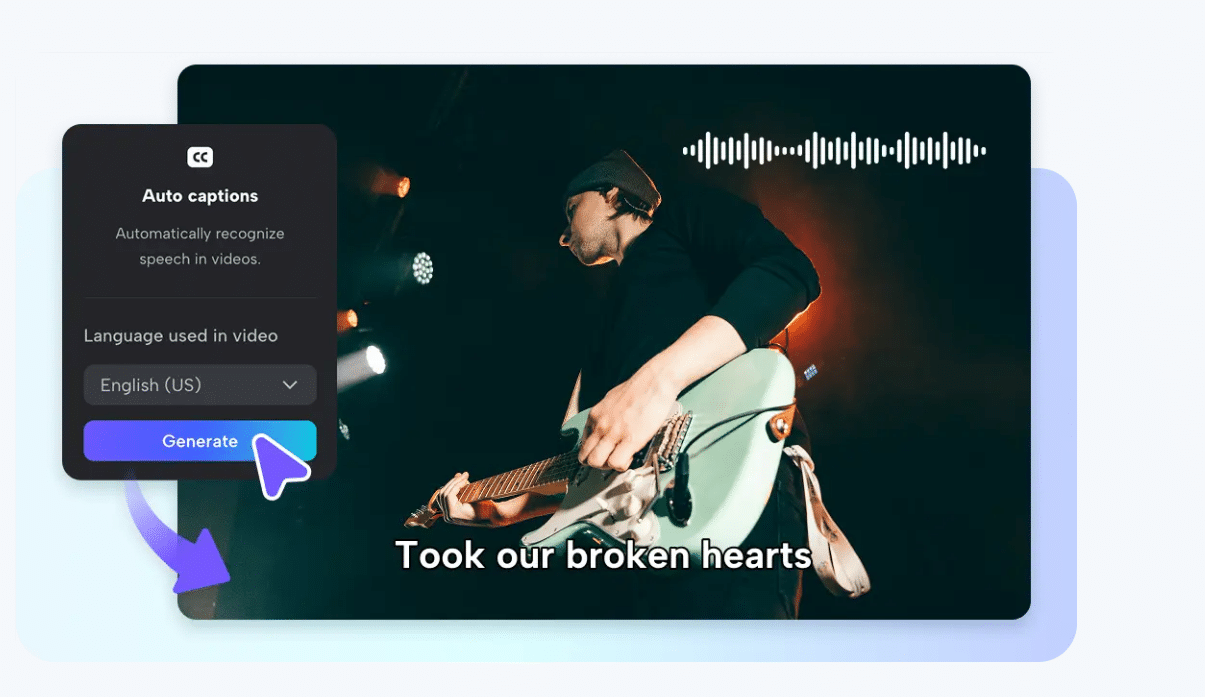
On-site screens vs. online teasers
On-site screens are all about energy and spectacle: big shots, pan of the crowd, large text. Online teasers are all about intimacy and urgency: close-ups, quick cuts, and subtitles for silent autoplay. Cropping allows you to customize the same moment for every mood.
Save time with a single master file
Always record your event in the highest resolution possible within your budget. That single master file is the well of all derivatives. You can crop, subtitle, and export in several formats without ever sacrificing definition.
Three easy steps to crop like a pro with Pippit
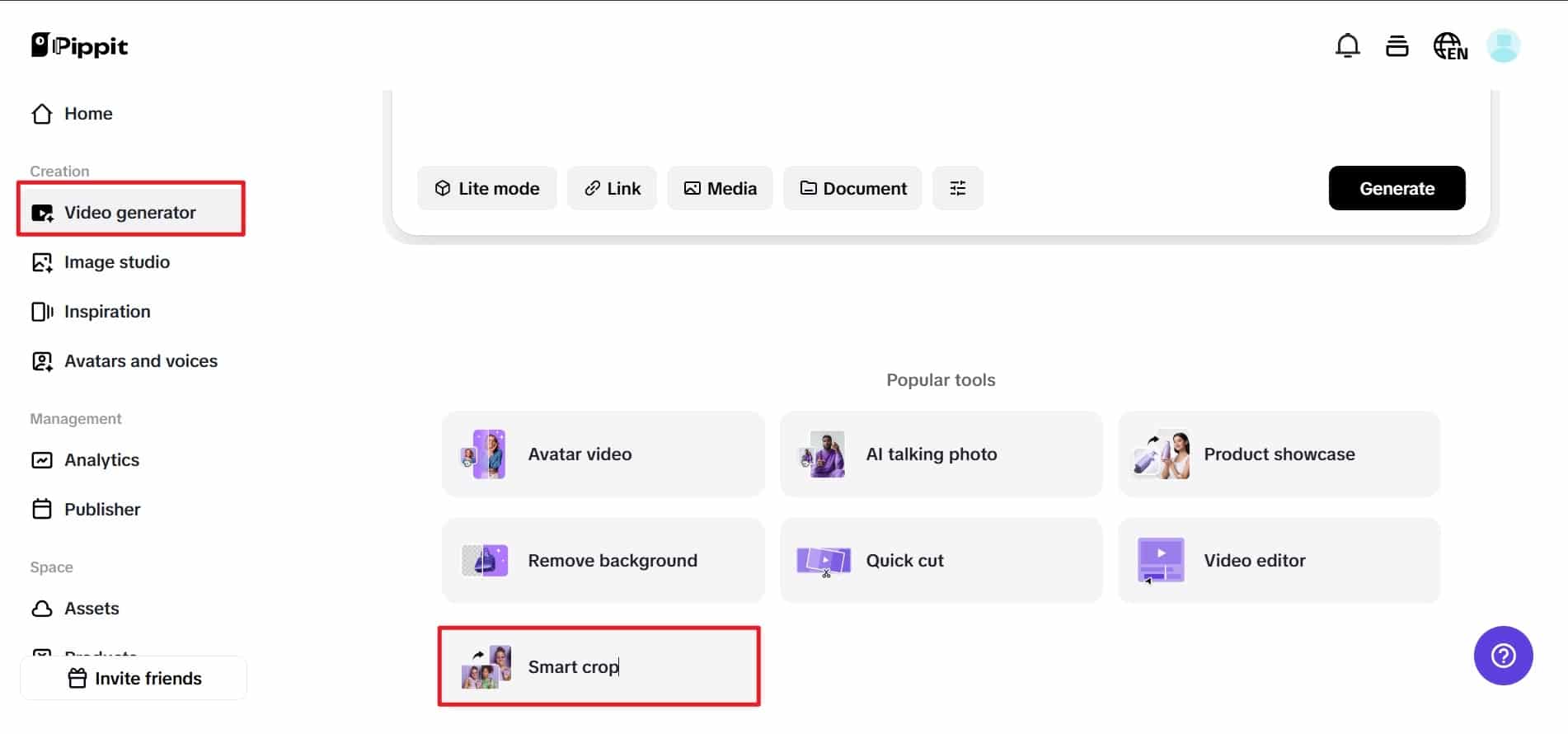
Step 1: Upload your videos
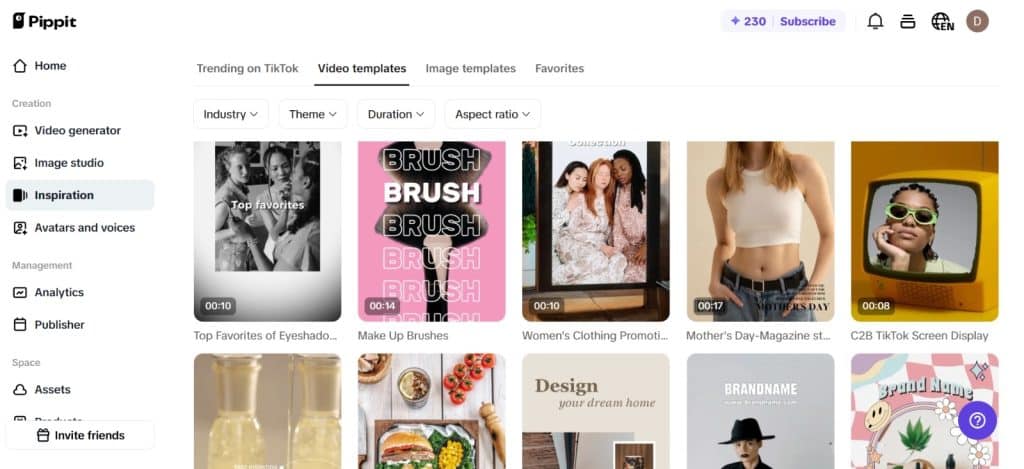
Get started by logging into Pippit for free. Open the “Smart crop” from the “Video generator” menu. You should see an “Upload” icon; you can use that by clicking to upload video files from anywhere on your device, in cloud storage, or on your local files. Your unedited event video is ready to be made into something new.
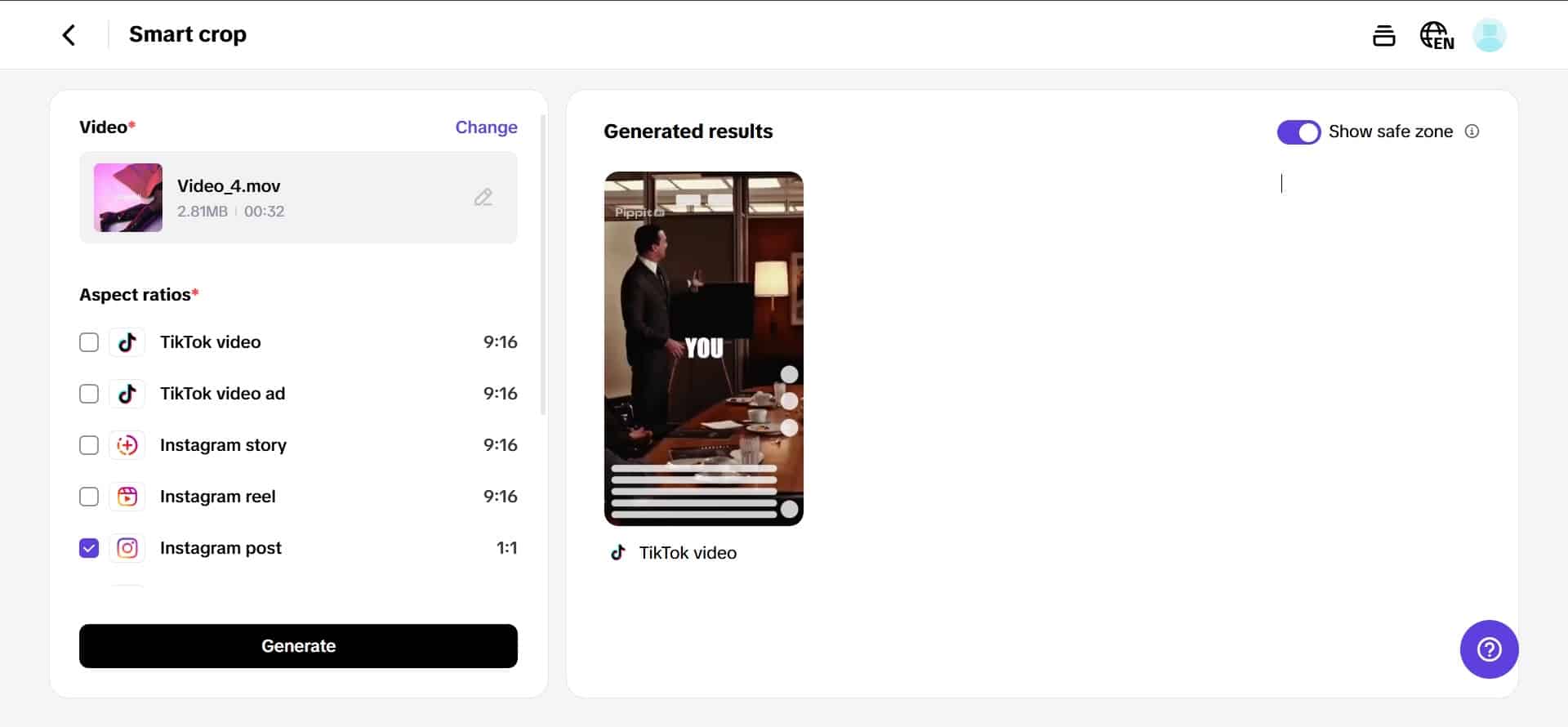
Step 2: Crop your videos
Do a quick selection of what aspect you want to crop to with the pre-set Smart crop to allow your video to be automatically resized to your desired aspect, e.g., 1:1 for Instagram or 9:16 for TikTok. From there you can then refine, moving and cropping specific parts of your video to show the block cutting off anything unfamiliar. Smart crops enable you to be precise without losing quality, so your stage moment will be perfectly framed across all screens.
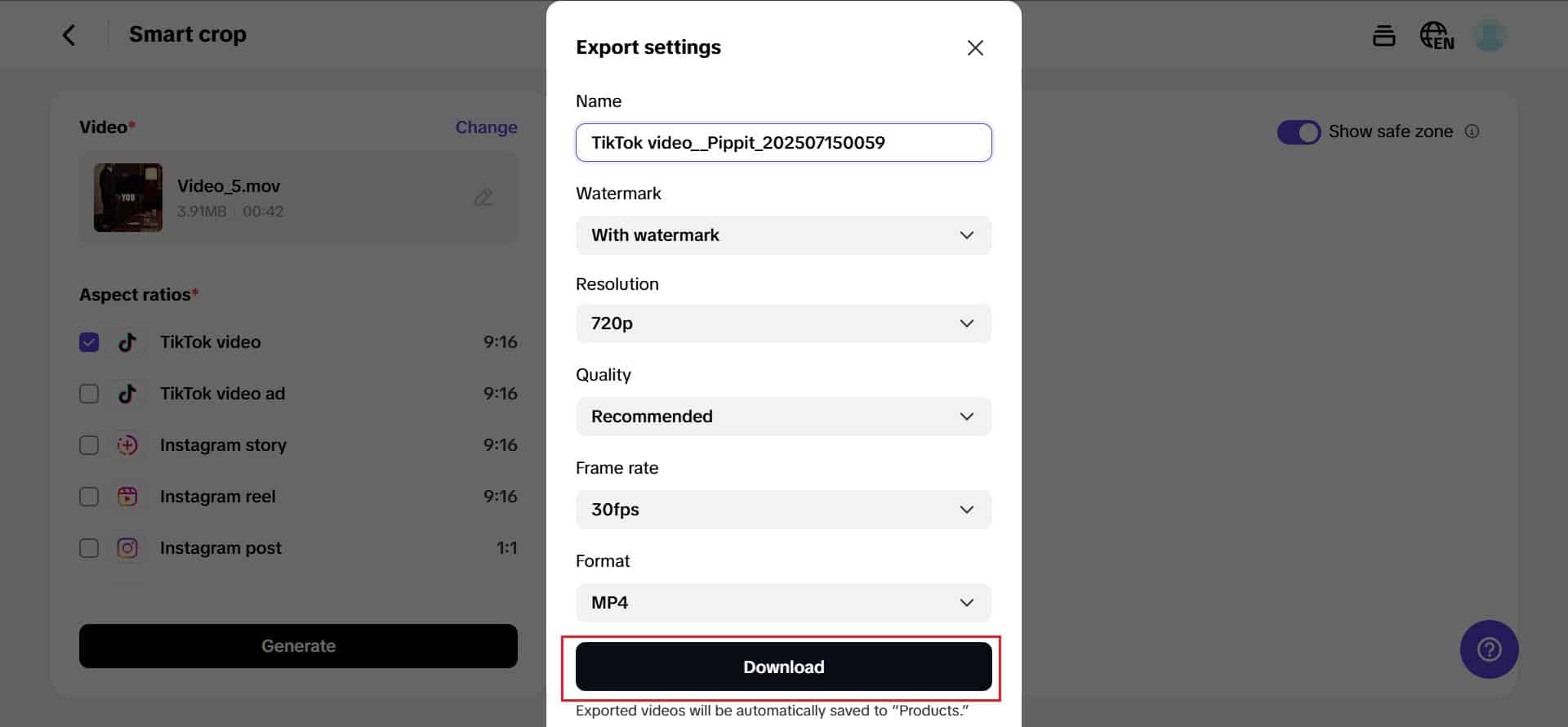
Step 3: Export your videos
Once you have trimmed your video, preview it to know if it is what you want. Choose your resolution and select a format, then ‘Export’ will save your video. Pippit makes it easy to share directly to places like YouTube and Instagram, along with having its own free online crop-video to publish will loads of free video tools.
Test different crops before you commit
Rather than guessing what version will work best, test them. Publish the same highlight in two aspect ratios, track engagement, and let what you’ve learned inform your next cuts. Through this back-and-forth process, you’re refining not just framing but also pacing, captions, and calls-to-action.
Cropping as a creative choice
Each frame you retain or trim tells audiences what is important. Do you highlight the speaker’s face, the product held up, or the applauding audience? By considering cropping, you can highlight each item individually for other audiences without having to reshoot.
Integrated tools mean faster delivery
Prior to platforms such as Pippit, editors had to navigate several apps for resizing, captioning, and exporting. Today, all this is accomplished through a single interface. That’s convenient, sure — but it preserves file quality and maintains your brand style consistently from clip to clip.
Taking event buzz far beyond closing night
Your cut-up clips are not just for after an event – they can serve as countdown trailers, session transition bumpers, and personalized thank you videos for attendees. These constant bits of micro-content will keep your audience engaged and a part of the conversation.
Final take
One live recording can be a dozen tales if you set it up properly. By planning ahead for aspect ratios, captions, and platform palatability, you turn mundane footage into energetic campaigns. With Pippit, you upload once, crop intelligently, and export to all channels without tech woes. Ready to make your event highlights live way past the stage? Try Pippit today and make each recording a multi-platform highlight reel your fans won’t stop sharing.