Your iPhone freezes at 30 percent, turns off in the cold, or gets bogged down when performing basic functions. Before spending money on an iPhone upgrade, check the part that’s typically responsible for these issues: the battery. A new battery is the key to an old iPhone getting another day’s use.
This guide will give you how-to instructions and the parts and tools required to replace an iPhone battery at home, as well as the real dangers. It also provides information on whether the repair is a DIY (at-home) type or a professional (out-of-home) type that would suit your model. Read the entire guide before you open the case with a screwdriver, since a repair always goes best if you don’t have to guess at each step!
Check Your Battery Health First
NEVER use a spare battery that functions properly. Open the Settings screen, tap Battery, then Battery Health and Charging. If it is going to have less than 80 percent or the message says to take it to service, then it would be advisable to replace the item. The percentage is likely fine at above 85%, and it is probably another problem that is causing your trouble.
A problem in software, too heavy an application, or an obsolete iOS version can simulate battery problems. Turn the phone on, update iOS, and monitor apps that consume power. If your health reading isn’t promising, and symptoms stay, proceed to repair. Also take into account the length of time you intend to use the phone. It’s okay to get a new battery for your phone if you can use it for another year or so.
Decide Between DIY and a Professional
Not all models of iPhone work well for a home repair. The process for older models of the iPhone 6s–13 or so is fairly similar; newer models require software pairing, which makes battery replacements more difficult. The table below outlines the options.
| iPhone Group | DIY Difficulty | Main Concern | Best Choice |
| iPhone 6s to iPhone 8 and SE | Moderate | Strong adhesive pull tabs | DIY with care |
| iPhone X to iPhone 11 | Moderate | Tight space, delicate cables | DIY with experience |
| iPhone 12 and iPhone 13 | Moderate to hard | Water seals, display cables | DIY or professional |
| iPhone 14 and newer | Hard | Software pairing, warnings | Professional recommended |
If the factory replacement battery still doesn’t appear in the system, you might notice a message in Settings. The phone is still usable; it’s just that the alert is a nuisance to some users. A professional or an authorized repair, if you do not want the cleanest result and have a newer model.
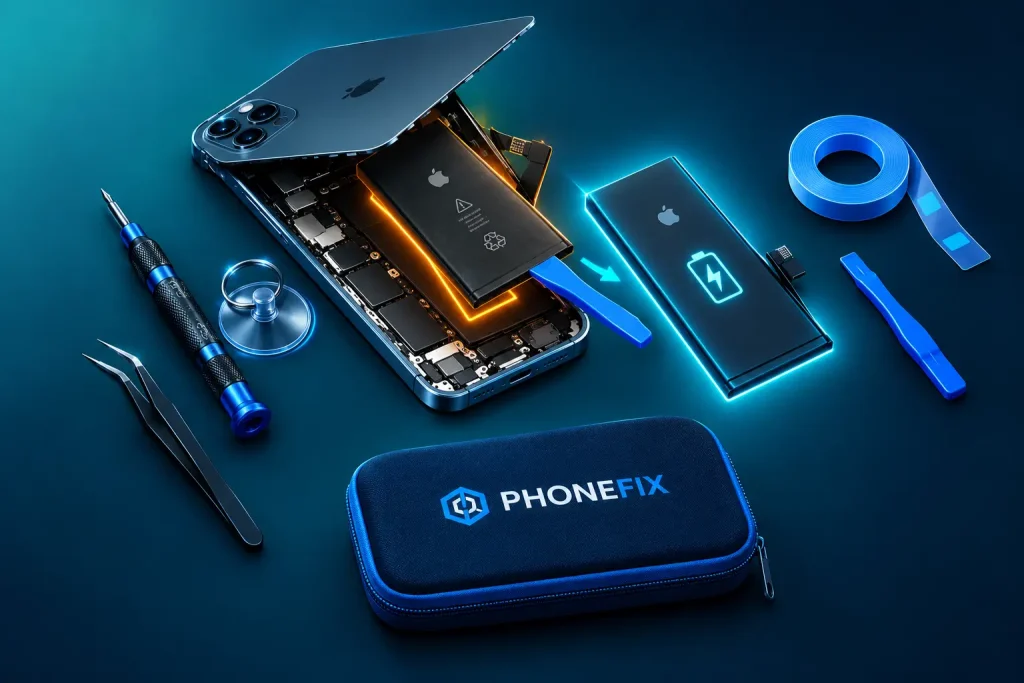
What You Need Before You Start
Collect all the items first before you open the phone. If you’re missing one tool halfway through the repair process, then you’re creating stress and making blunders.
- A model-specific replacement battery from the iPhone Battery Replacement Parts category
- A P2 pentalobe screwdriver for the two bottom screws
- A Phillips #000 screwdriver for the connector bracket
- A suction cup handle to lift the display
- A heat source such as a heating pad or heat gun
- A plastic spudger and tweezers
- New adhesive strips cut for your iPhone model
- Isopropyl alcohol at 90 percent or higher as a backup
One battery won’t fit any other iPhone model; verify your model in Settings/General/About before ordering. An excellent set of Phone Opening Tools has the suction cup, picks, and the spudger all in a single set, which saves money and ensures that the pieces are compatible.
Step-by-Step Battery Replacement
The steps are a little different depending on the model and should be used like a map, following an iPhone model-by-model guide.
Power Off and Remove the Bottom Screws
Completely power off the phone. Take off the two pentalobe screws next to the charging port and store them on a mat. A neat and quiet beginning makes the subsequent part of the work easier.
Heat the Edge and Lift the Display
Heat the bottom edge gently all the way across for 60-90 seconds. Avoid exposing it to heat; heat may inflate or even fire an overheated battery. Fasten the suction cup, then pull up just a little and move a pick into the space. Pick up the display carefully, as if lifting up the cover of a book, and refrain from straining the cables under the display.
Disconnect the Battery First
Unscrew the small connector knob on top of the battery connector. Before working on anything else, disconnect the battery with a plastic spudger. This is the most important step, as a live connector could short the logic board, causing expensive damage. Afterwards, remove the display cables and put the screen away in a safe place.
Release the Old Battery Adhesive
Generally, the pull tabs that hold iPhone batteries in place extend between two and four. Gradually pull each tab at a low angle parallel to the battery and extend the tab until the glue breaks off. If a tab breaks, place a few drops of isopropyl alcohol under the battery and let it sit before attempting again. Do not use any metal object to pry the battery; it may become punctured and start to overheat, leading to a fire.
Install the New Battery and Reconnect
Scrub it clean, then remove the strips of the adhesive and position the new strip in the same spot as the old strip by the battery. Gently push it in. Reconnect the battery connector until it snaps back into place, then connect the display cables and the bracket.
Test Before You Seal
Keep the phone open and turn it on. Hold the Phone open and turn it on. Visually inspect the screen, touch response, face or touch ID, charging, and camera. If all is well, turn it off, use new Display Adhesive (if using), put the phone in place, and replace the bottom screws.
Safety Rules You Cannot Skip
Respect Lithium Batteries. Operate on a clean, non-flammable surface; if possible, stand by an assortment of sand or fire blankets. Immediately halt operation if you notice smoke, a sweet smell, or a chemical odor, or if the battery is swollen. Put the cell phone on a safe surface outside and call a local disposal service.
Do not puncture, bend, or squeeze a battery. Don’t use an old phone with a broken battery. Recycle old batteries instead of the garbage at a recycling collection point.
Conclusion
A battery replacement will bring new life to an iPhone that has years of life ahead, performs faster, has more standby time, and gives you trust in a phone that hasn’t stopped working yet.
Test battery health first, be sure to use the correct components for your battery model, and take your time with each step. Unplug the battery as soon as possible, gently heat the adhesive, and test before you seal up the case. When you do have a newer model or are unsure, you’ll want to go with professional repair.
FAQs
How do I know my iPhone needs a new battery?
Check Battery Health and Charging in Settings. A maximum capacity below 80 percent, sudden shutdowns, or a service message suggest a replacement.
Can I replace an iPhone battery myself?
Yes, on many older models. A careful beginner can complete it with the right parts and tools. Newer iPhones add software pairing, so a professional repair often works better.
How long does a DIY iPhone battery replacement take?
Most beginners need about one to two hours. Experienced repairers finish faster, but rushing increases the risk of damaged cables.
Is a non-genuine battery message normal?
On some newer iPhones, yes. The phone may show the message when it does not recognize the replacement battery. The phone usually works normally, but the warning can remain.
What should I do with the old battery?
Never throw it in household trash. Take it to a battery recycling point or an electronics retailer that accepts lithium batteries.